

Screenshot guide · OAuth
Connect Podcasto to Claude
Add Podcasto as a custom remote connector in Claude. Sign in with OAuth, without a token.
Screenshots captured . Menu names can vary by account and interface version.
Before you start
Sign in to Podcasto and Claude in your desktop browser. Custom connectors are available on Free, Pro, Max, Team and Enterprise; Free accounts can add one custom connector. On Team or Enterprise, the organization owner must first add or allow the connector.
Podcasto MCP server URL
https://app.podcasto.app/api/mcpStep 1: Open Customize → Connectors
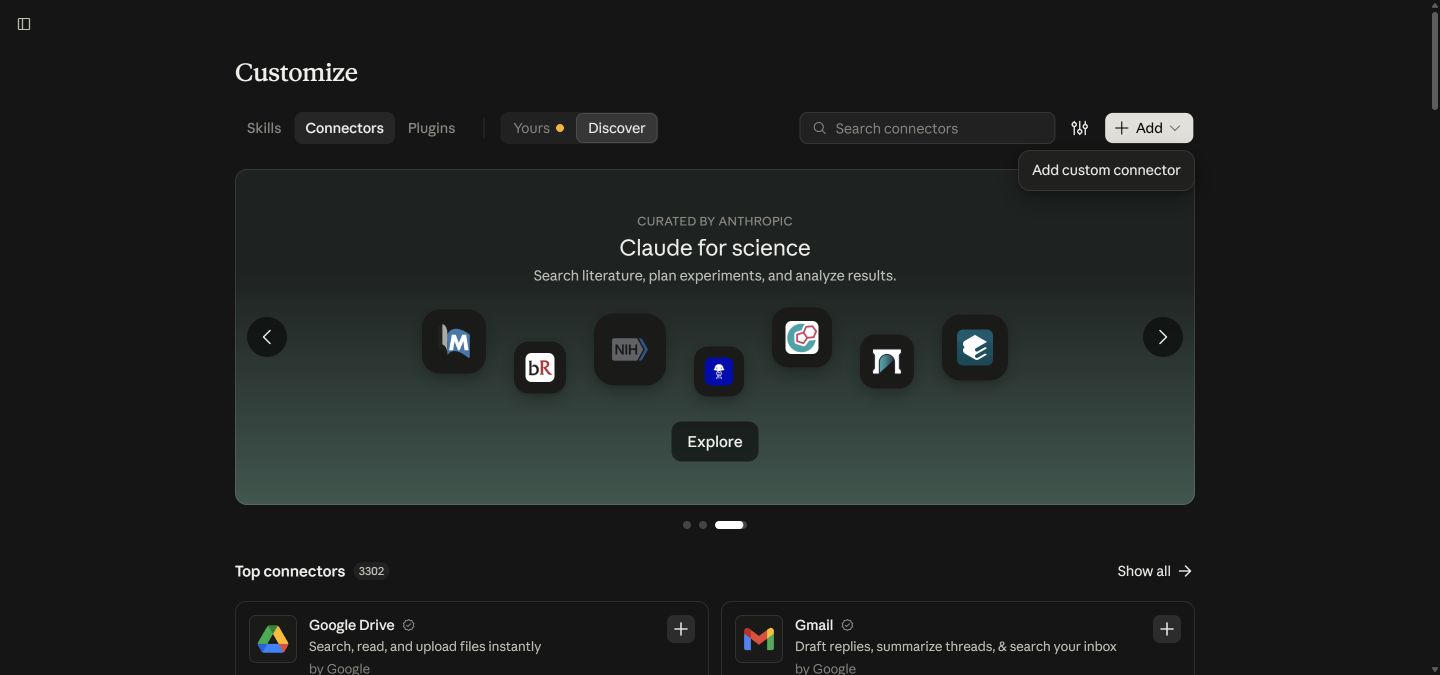
Open Customize from Claude’s sidebar, then select Connectors. Choose Add (or the + button) and Add custom connector.
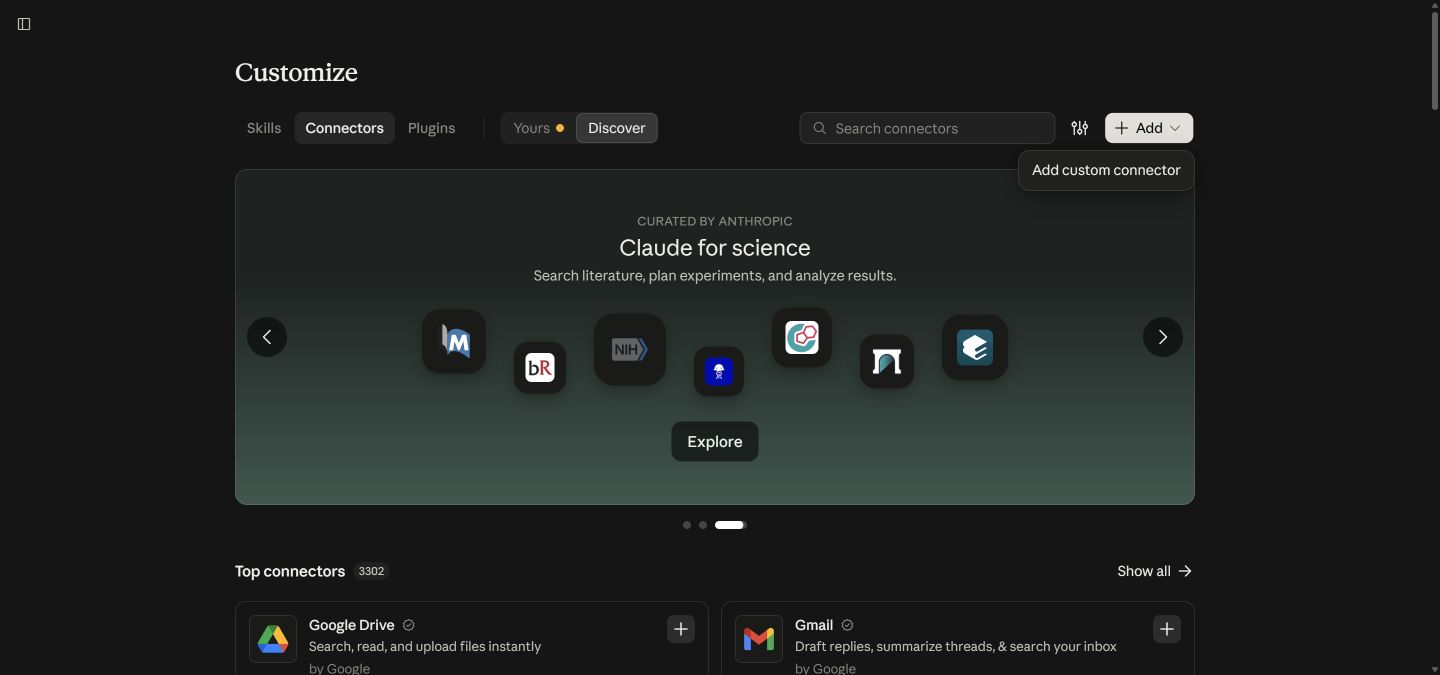
Add a custom connector from Customize → Connectors. Click the image to enlarge. Step 2: Name the connector and enter the server URL
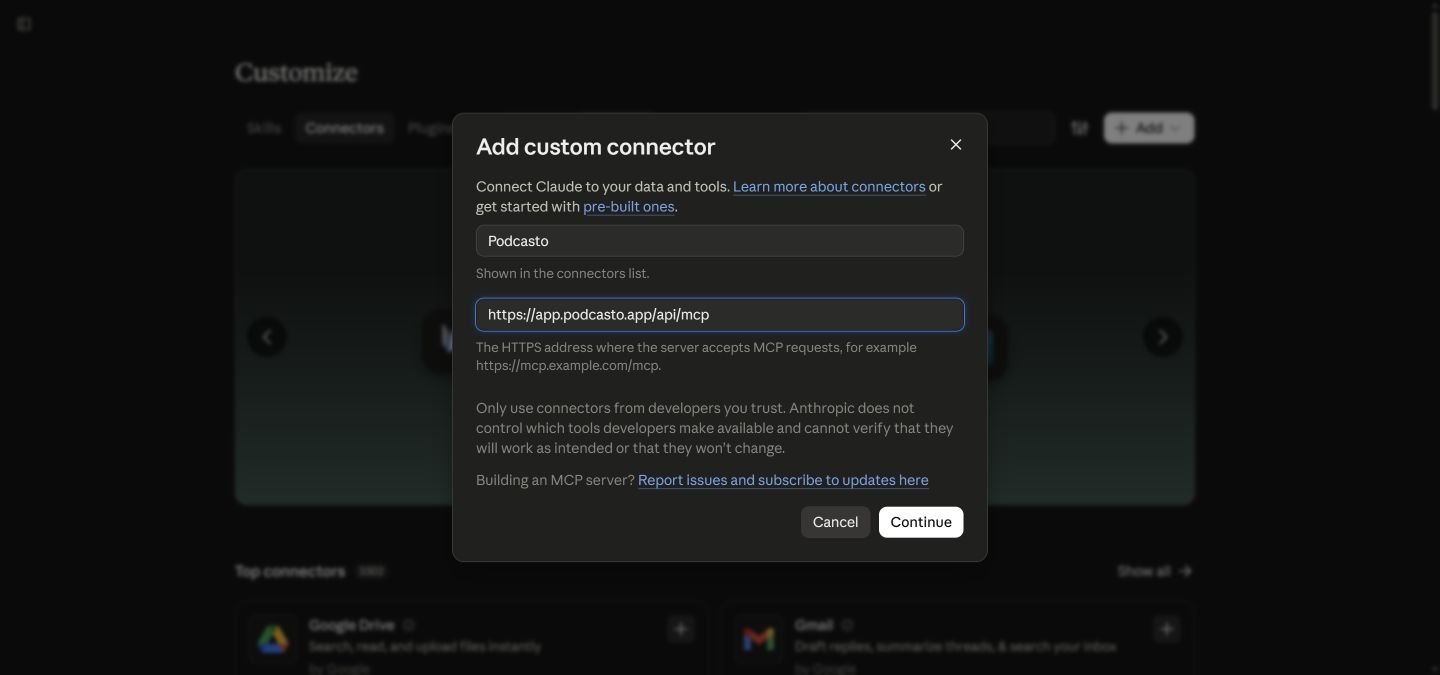
Enter Podcasto as the name and paste the MCP address below. Click Continue and wait while Claude checks the server and discovers its sign-in settings.
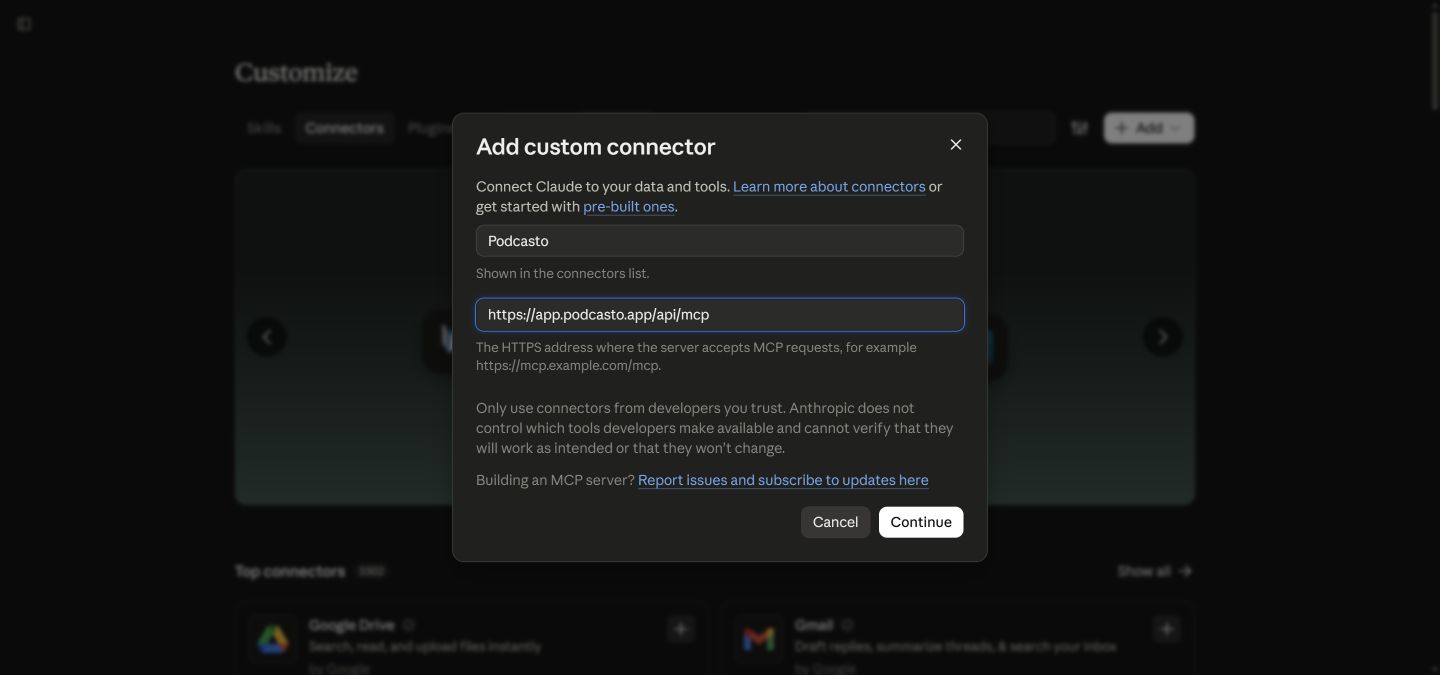
Enter Podcasto and the complete HTTPS server URL. Click the image to enlarge. Step 3: Use Sign in now and Register automatically
Keep Sign in now selected. Under OAuth client, keep Register automatically (DCR). Leave request headers empty; no client ID or secret is needed. Click Add, then Connect on the Podcasto connector page. In an older interface, the form may have a single Add button and an optional Advanced settings section.
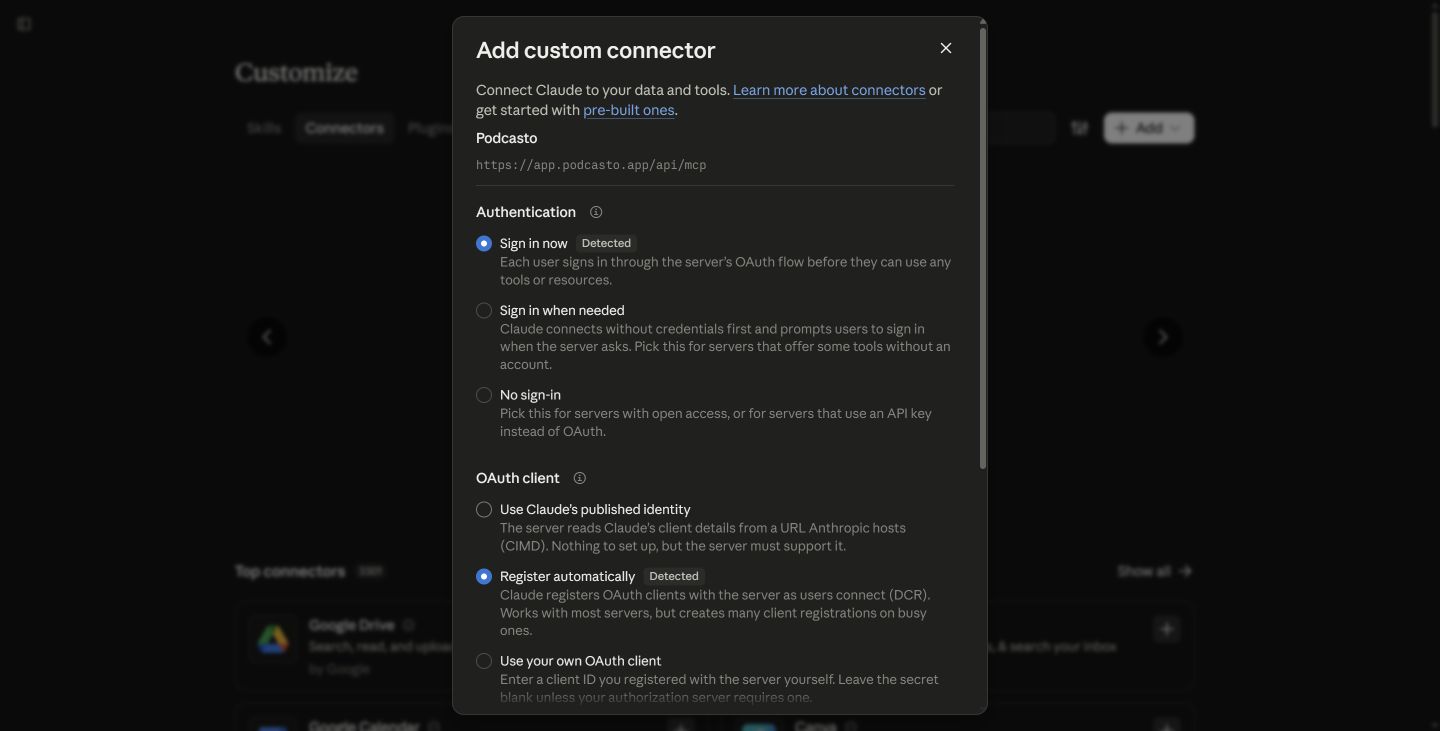
Use OAuth sign-in and automatic client registration. Click the image to enlarge. Step 4: Review and approve access in Podcasto
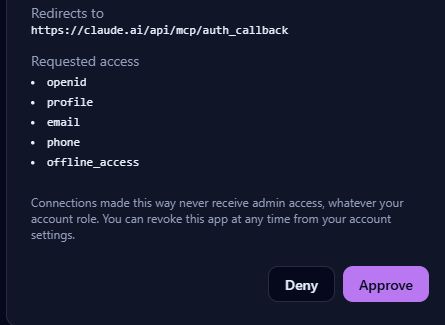
Sign in to Podcasto if needed. Check that the consent screen names Claude and redirects to claude.ai. Review the requested access and select Approve. The connection can manage your podcasts within your plan and credit balance; it never receives admin access.
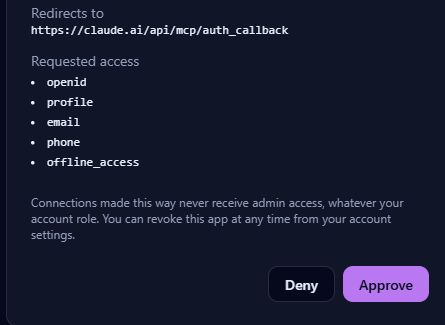
Approve the connection after reviewing access. Account details are cropped out. Click the image to enlarge. Step 5: Enable Podcasto in a conversation and check the connection
Open a new Claude chat. Use + → Connectors to enable Podcasto if it is not already active. Run the connection check below. If Claude asks to allow get_me, allow this read-only call. A successful response confirms the connection without creating an episode or spending Podcasto credits.

Try a safe connection check
Paste into Claude
Use Podcasto to check my connection with get_me. Tell me whether it succeeded. Do not show personal account details, change anything, or generate an episode.Expect a successful get_me response. After that, try “Show my podcasts.” Episode generation spends Podcasto credits; the connection check does not.
If tools do not appear
- Check the full server URL: use app.podcasto.app/api/mcp, including https://.
- Finish the Podcasto approval screen, then return to your assistant and start a new conversation with Podcasto selected.
- Reconnect if a previous attempt failed. Keep OAuth and automatic registration; do not disable OpenID or add a personal token to this flow.
- If the custom connector option is missing, check your account’s feature access or ask your workspace administrator.