

Screenshot guide · OAuth
Connect Podcasto to ChatGPT
Connect your Podcasto account to ChatGPT with OAuth. No personal token to copy.
Screenshots captured . Menu names can vary by account and interface version.
Before you start
Sign in to Podcasto and ChatGPT in your desktop browser. Your ChatGPT account must allow custom MCP apps. On a managed workspace, an administrator may need to enable them. If your interface shows Apps instead of Plugins, look for the custom MCP app option there.
Podcasto MCP server URL
https://app.podcasto.app/api/mcpStep 1: Open Plugins and choose Add → Create MCP App
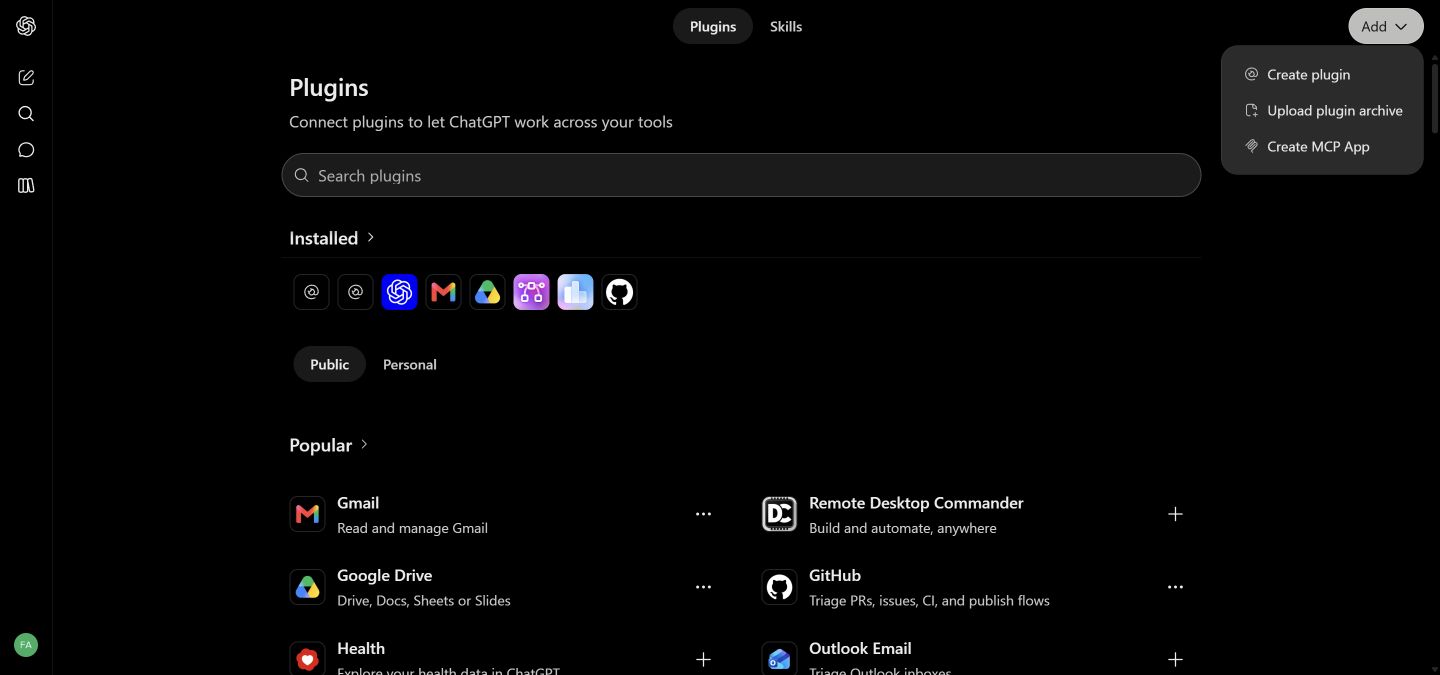
Open Plugins in ChatGPT. Use Add in the upper-right corner and choose Create MCP App. This is a remote server connection; you do not need to upload a plugin archive.
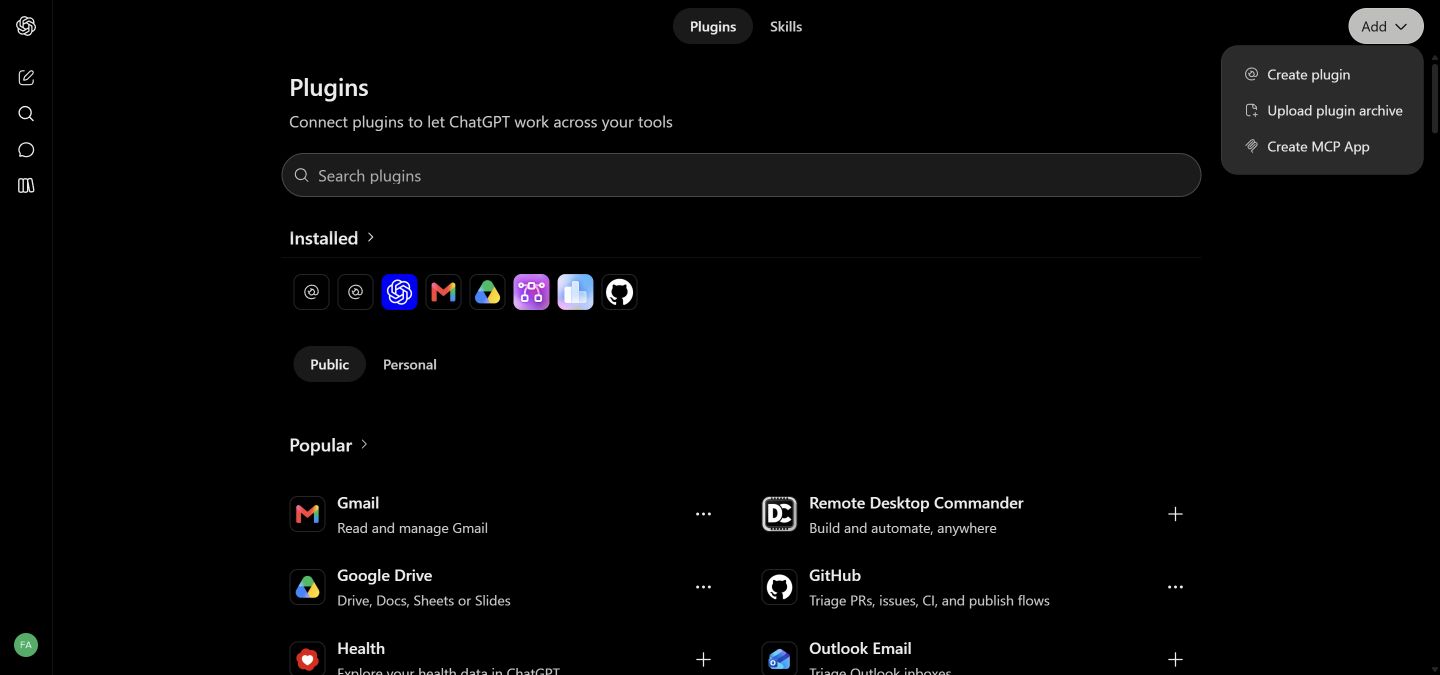
Choose Create MCP App from the Add menu. Click the image to enlarge. Step 2: Enter the Podcasto server URL
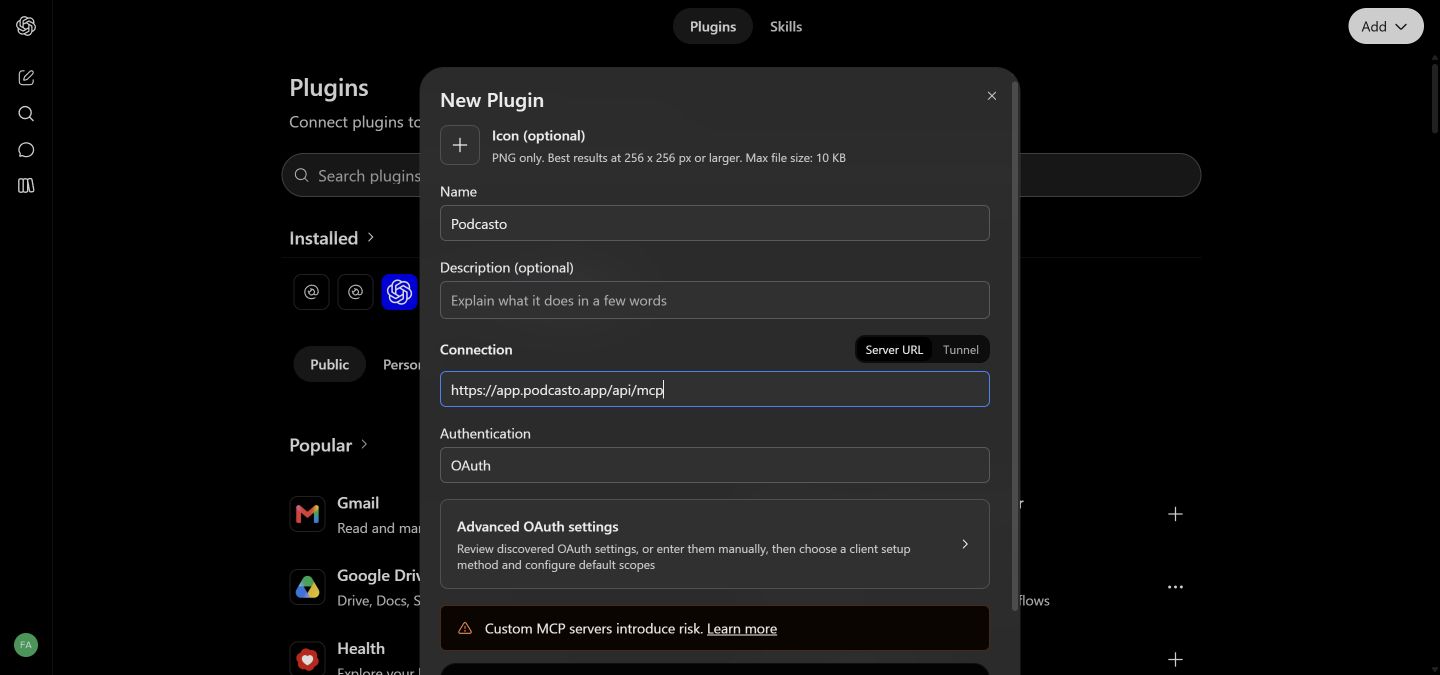
Name the connection Podcasto. Select Server URL, paste the address below, and keep Authentication set to OAuth. The description and icon are optional.
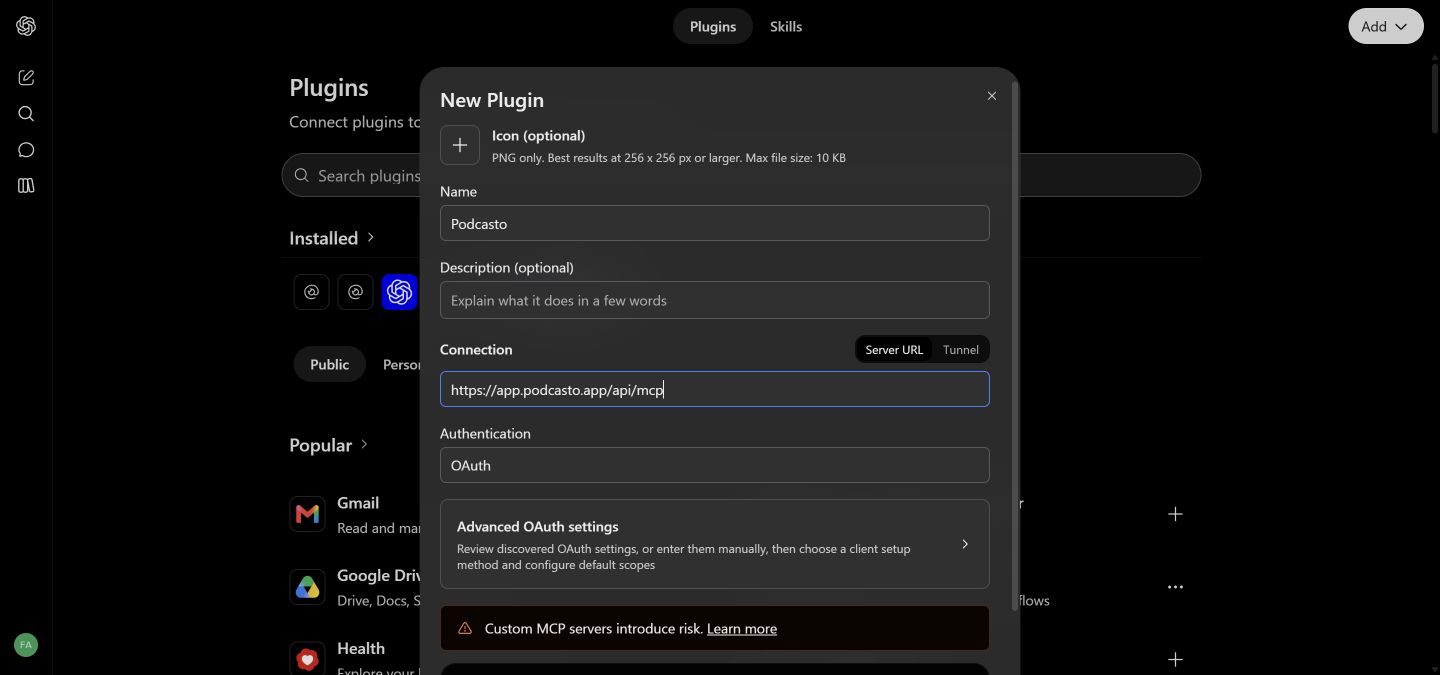
Use the complete app.podcasto.app address and OAuth. Click the image to enlarge. Step 3: Keep automatic OAuth discovery
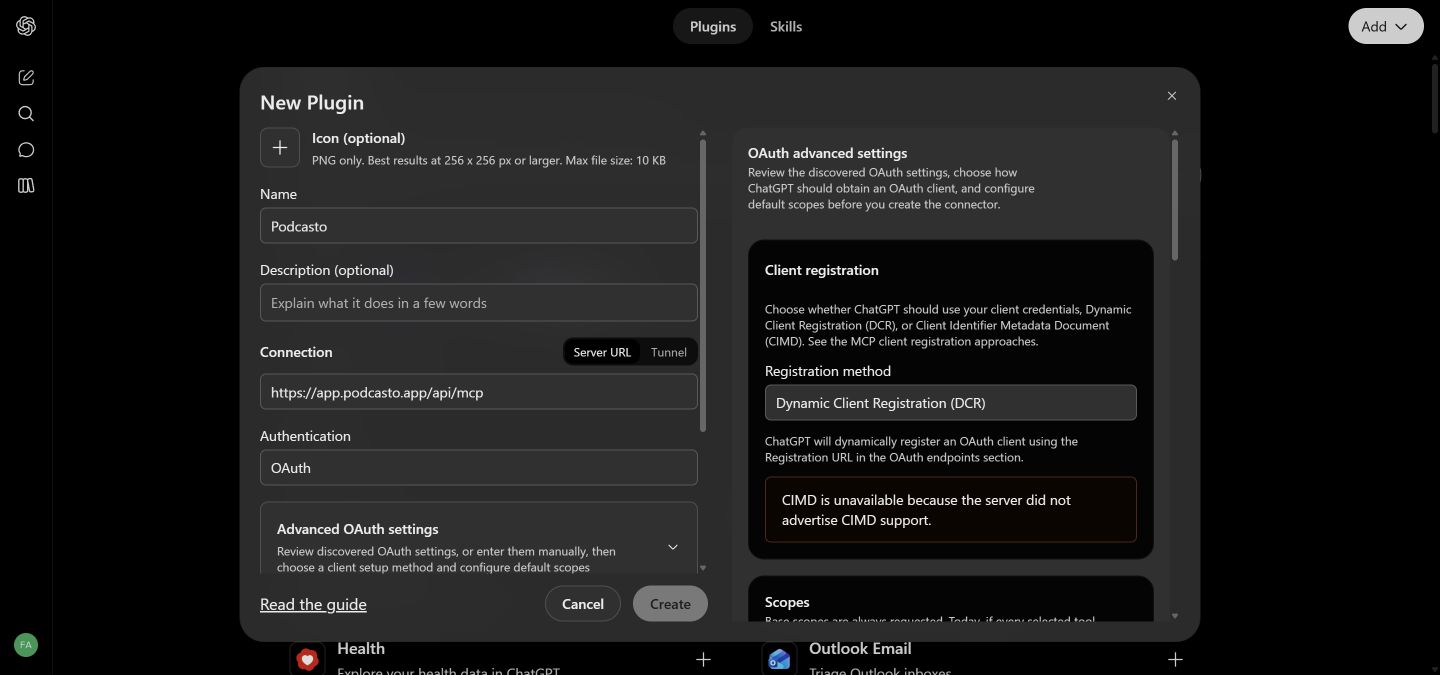
No advanced settings need changing. If you open them, wait for discovery to finish: Dynamic Client Registration (DCR) should be selected automatically. Keep OIDC enabled, keep the discovered scopes, and leave base scopes empty. Do not enter a client ID, secret, or a personal token.
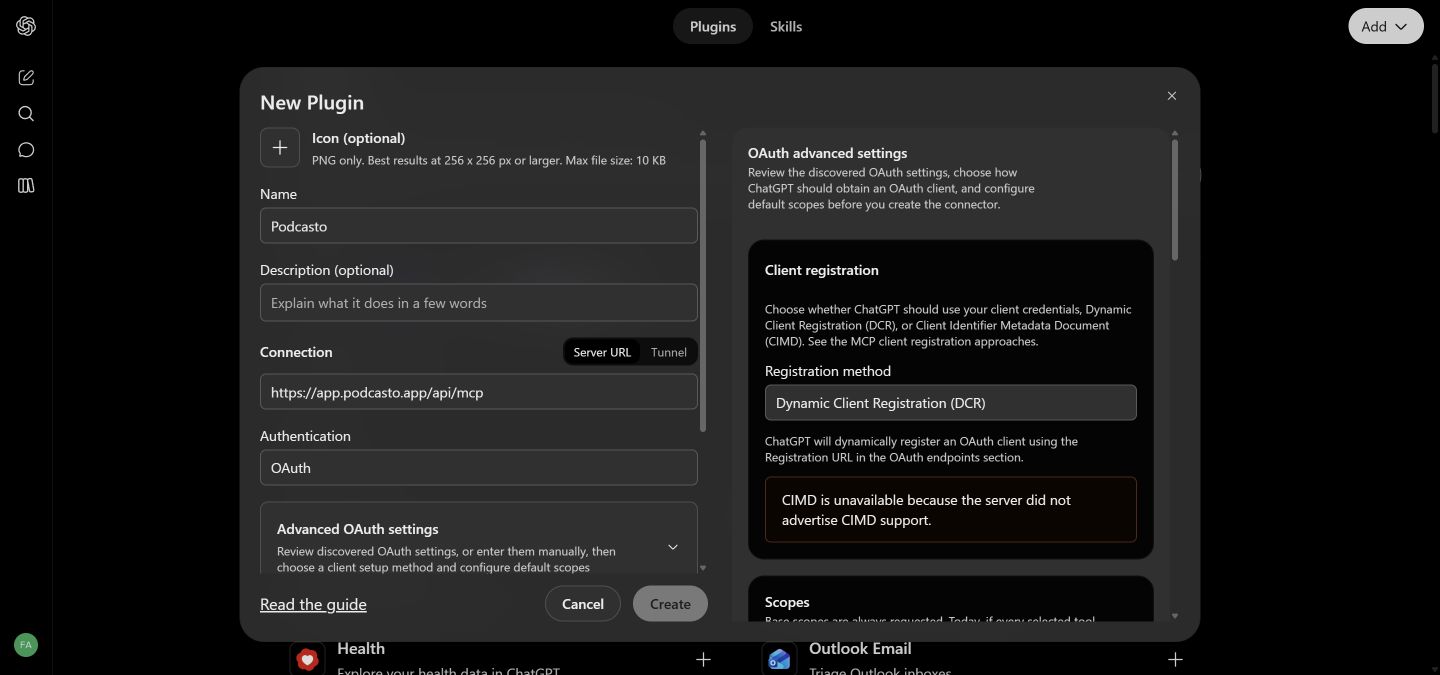
DCR is discovered automatically. You can leave advanced settings closed. Click the image to enlarge. Step 4: Create the app and approve the Podcasto connection
Review the custom-server notice, select I understand and want to continue, and click Create. If ChatGPT offers Install or Connect, select it. Sign in to Podcasto if prompted, review the requested access, and select Approve. Return to ChatGPT and open the app’s tool list.
Step 5: Check that tools are available
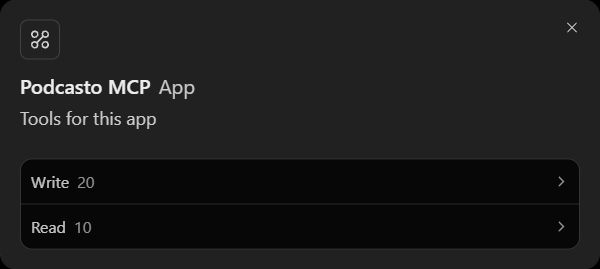
A connected Podcasto account exposes 30 user tools: 10 read tools and 20 write tools. Select Try in chat, or select Podcasto from the chat’s tools/plugins menu, then run the connection check below. This check does not create content or spend Podcasto credits.
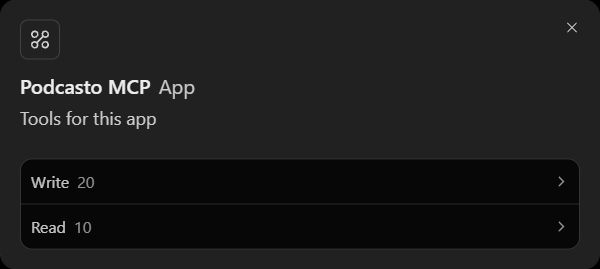
The tool list confirms that ChatGPT can discover Podcasto’s tools. Click the image to enlarge.
Try a safe connection check
Paste into ChatGPT
Use Podcasto to check my connection with get_me. Tell me whether it succeeded. Do not show personal account details, change anything, or generate an episode.Expect a successful get_me response. After that, try “Show my podcasts.” Episode generation spends Podcasto credits; the connection check does not.
If tools do not appear
- Check the full server URL: use app.podcasto.app/api/mcp, including https://.
- Finish the Podcasto approval screen, then return to your assistant and start a new conversation with Podcasto selected.
- Reconnect if a previous attempt failed. Keep OAuth and automatic registration; do not disable OpenID or add a personal token to this flow.
- If the custom connector option is missing, check your account’s feature access or ask your workspace administrator.